
Desktop app
Ruwad Connect for Windows
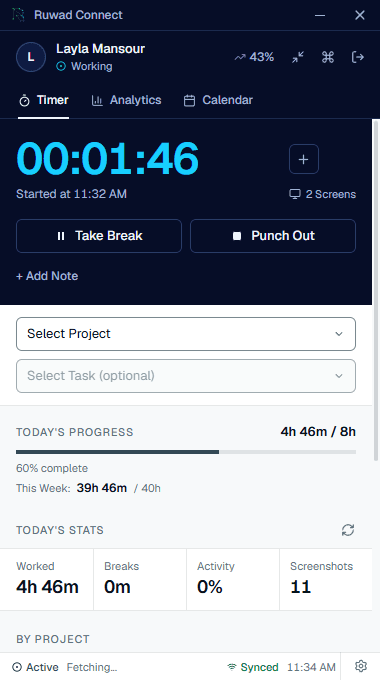
The desktop tracker records time, screenshots and breaks while you are punched in, and sends them to your workspace. Sign in with the account your workspace invited.
Installers
Windows
Windows 10 or later (64-bit)
Windows installer
The usual choice. Installs for your Windows account without an administrator, lets you choose the folder, and offers each new version in the app.
Ruwad-Connect-Setup-5.0.0.exe106 MBVersion 5.0.0Signed by AVMDEVS LLC
Windows MSI package
For IT-managed rollouts. Installs once for every user on the machine. It does not update itself: IT installs each new version.
Ruwad-Connect-5.0.0.msiVersion 5.0.0
- Install
- Open the .exe and follow the prompts. The app starts when the installer finishes.
- Updates
- The app checks for a new version shortly after it starts and every four hours, and offers it in the app. The MSI is the exception: IT installs each version.
- Check the file
- Right-click the .exe, choose Properties, then Digital Signatures: the signer is AVMDEVS LLC. Its SHA-512 is the sha512 line in latest.yml, published beside it, while that file's version line reads 5.0.0. To compare, open PowerShell in the folder you saved the file to and run this line; it prints the same value when the file is intact.
[Convert]::ToBase64String([System.Security.Cryptography.SHA512]::Create().ComputeHash([IO.File]::ReadAllBytes("$PWD\Ruwad-Connect-Setup-5.0.0.exe")))
Mac
No Mac build is published right now
The web workspace works in any modern browser on a Mac.
A webcam is needed only if your workspace turns on webcam checks. An internet connection is needed to sign in and to send what was recorded.
- Runs on
- WindowsWindows 10 or later, 64-bit
- Window
- 380 × 680a small window, and a tray icon while tracking
- Updates
- Offered in the appchecked on launch and every four hours
- Sign in
- Workspace accountthe one from your invitation
From download to the first hour
Download the tracker
Take the Windows installer above, or the MSI package if your IT team deploys software for you.
Install it
Open the file and follow the prompts. The app starts when the installer finishes.
Sign in with your workspace account
Use the account you created when you accepted your invitation. If you belong to more than one workspace, choose the one you are working for.
Read the consent screen
It lists what your workspace records, screenshots, webcam checks and activity, before anything is captured.
Punch in
Choose a project and a task and start the timer. The tray icon shows while tracking is on.
How your data is handled
- Screenshots and photos
- Private storageopened only through signed links that expire within 15 minutes
- Workspaces
- Kept apartthe server refuses a request for another workspace's records
- Consent
- Checked by the servertracking does not start until the person has accepted the current version
- Windows installer
- Signedby AVMDEVS LLC, through Microsoft Trusted Signing
For admins
Rolling it out to a team?
On Windows, the MSI installs once for every user on a machine. What the tracker records is set in the workspace, read from the server on every launch, and cannot be raised from the desktop.
No workspace yet?
Create one on the web first, free for ten people and three projects, then invite the people who will install the tracker.