
Desktop time tracking and project management
Track the hour. Approve it. Pay and bill from it.
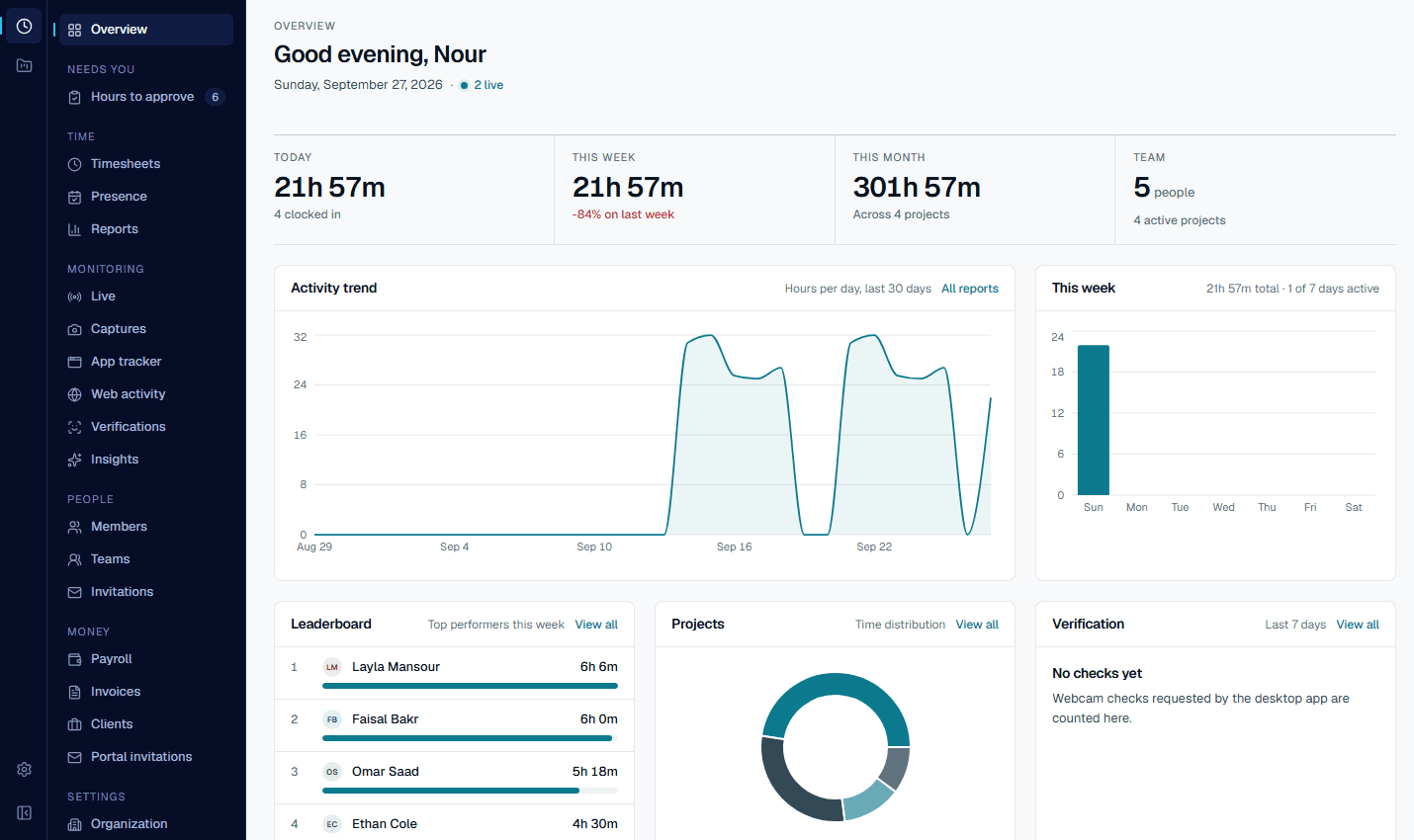
Ruwad Connect records work on the desktop: time, screenshots at your plan's cadence, breaks and idle time. It turns the hours a manager approves into payroll and client invoices.
- Screenshots
- Every monitorat the plan's cadence, with blur available
- Webcam checks
- Random, in hoursStarter and above
- Approved hours become
- Payroll and invoiceswith payslip and receipt PDFs
- Exports
- CSV · XLSX · JSONplus ClickUp and Zoho Projects files
Why it matters
An unproven hour costs you twice.
Once when you pay for it, and again when a client questions the invoice it is on. Ruwad Connect exists so that every hour you pay for or bill has a record behind it.
Timesheets filled in from memory on Friday afternoon.
Time recorded as it happens, on the project and the task it belongs to.
Idle minutes paid as work because nobody could tell.
Idle time noticed, asked about, and excluded on the server.
A client questions an invoice line and there is nothing behind it.
Every billed hour is an approved entry with its captures behind it.
Payroll from one spreadsheet, invoices from another, and they never agree.
Both generated from the same approved hours, so the figures match.
A monitoring policy set on each laptop, differently, without anyone's consent.
One policy on the server, read by every tracker, with each person's consent recorded.
The product
From the first minute to the last invoice.
Six screens, in the order a working day passes through them.
The desktop tracker
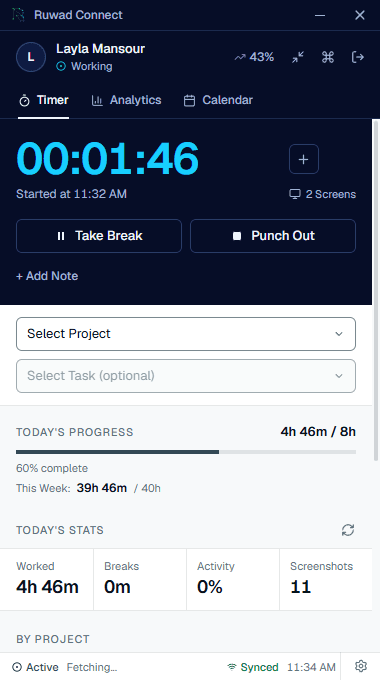
Punch in on a project and a task.
A small app for Windows that runs while someone is working. Pick the project and the task, start the timer, and the tray icon shows that tracking is on. Breaks are a button, not a guess.
- Project and task pickers, so every hour belongs to the work it was spent on
- Take Break and Punch Out, with today's progress against the day's hours
- Records only what the workspace's plan and settings allow
Captures
See the day as it was recorded.
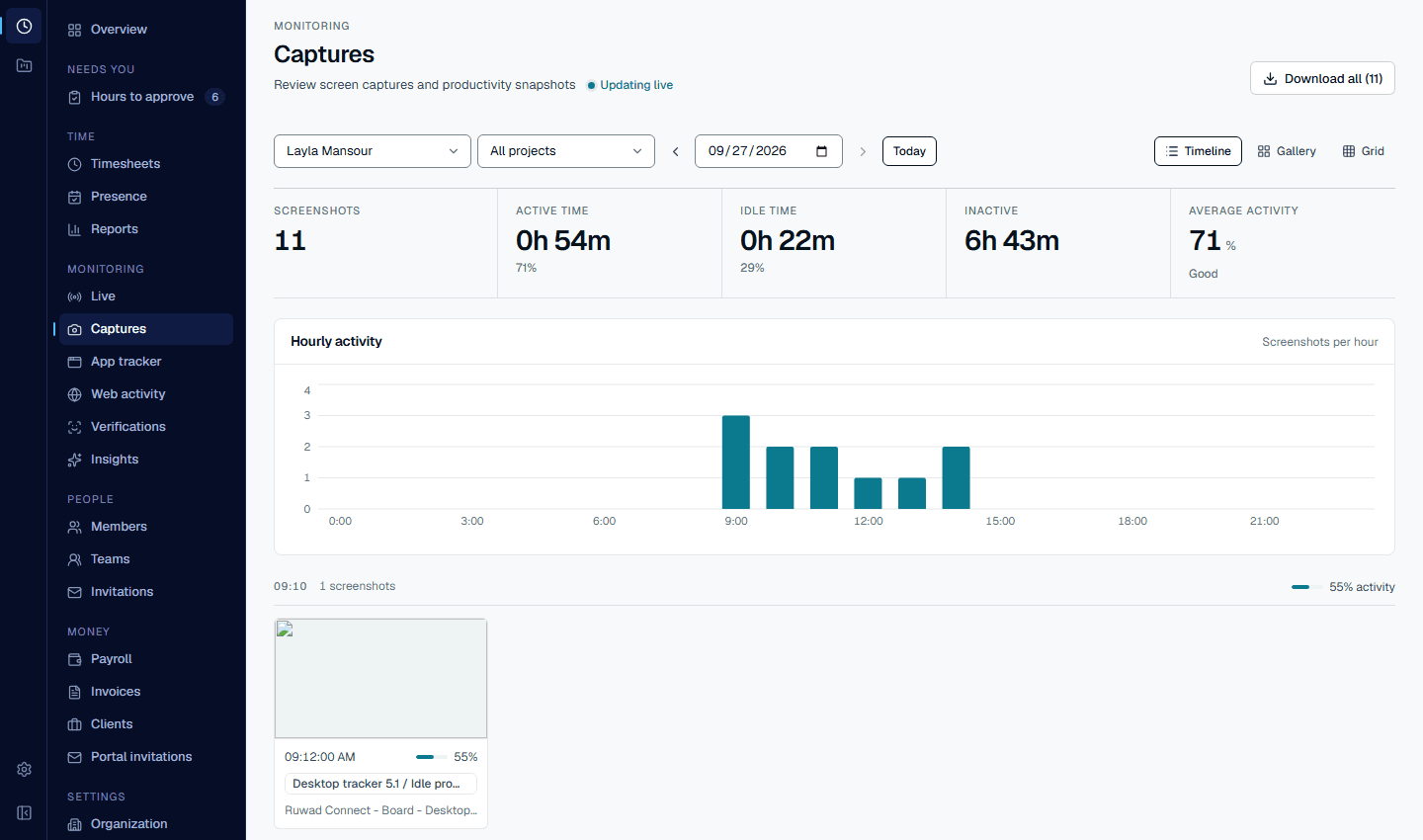
Screenshots from every monitor at the plan's cadence, laid on an hourly activity chart. Each capture carries the time, the activity level and the app that was on screen, and each one gets a short AI description and a category.
- Blur available, so the review shows the shape of the work and not the content
- Active, idle and inactive time for the day, per person
- A daily AI summary rolls the captures up (Starter and above)
Approvals
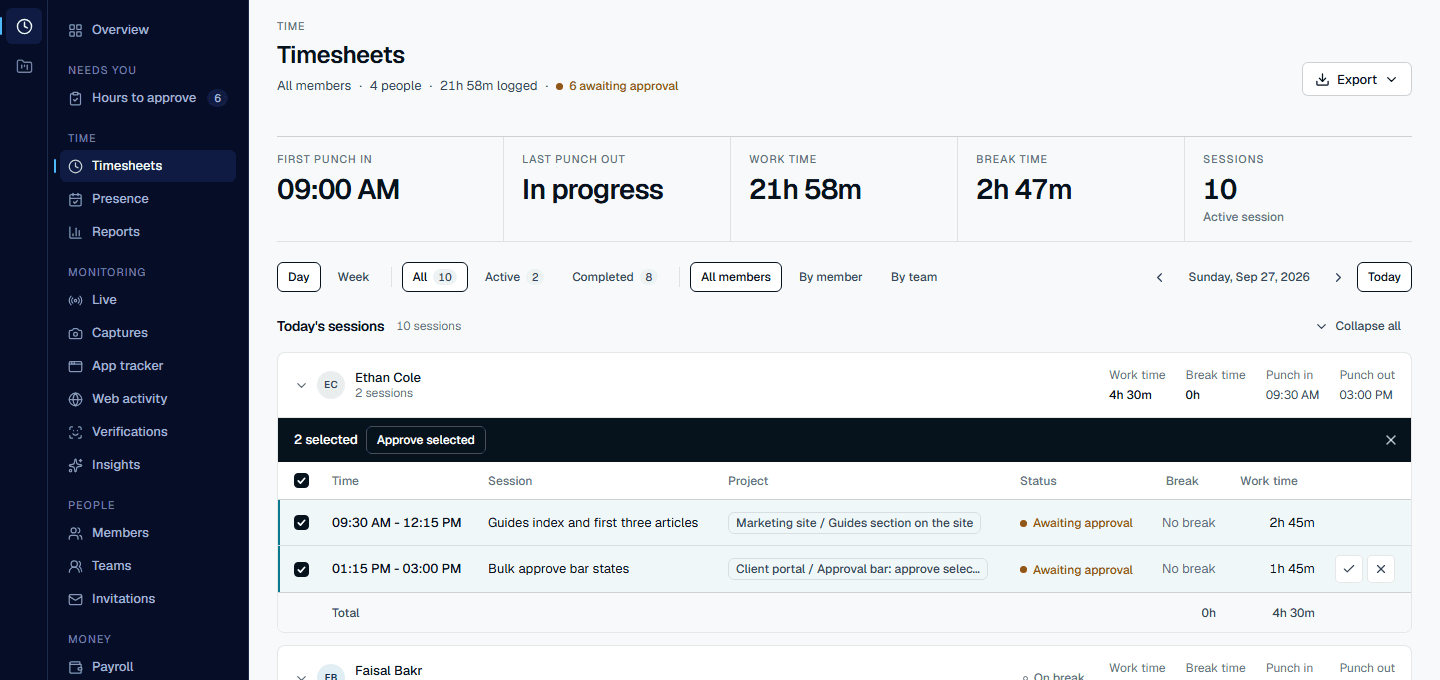
Approve a day's hours in one pass.
Timesheets show every session with its project, breaks and work time. Select the entries that look right and approve them together; reject the one that does not, and it comes back out of everything it touched.
- Approving updates the task's actual hours and the project's budget at once
- Idle time the app asked about is already left out on the server
- Export the sheet's sessions as CSV, JSON or a text report; rejected ones are left out
Projects
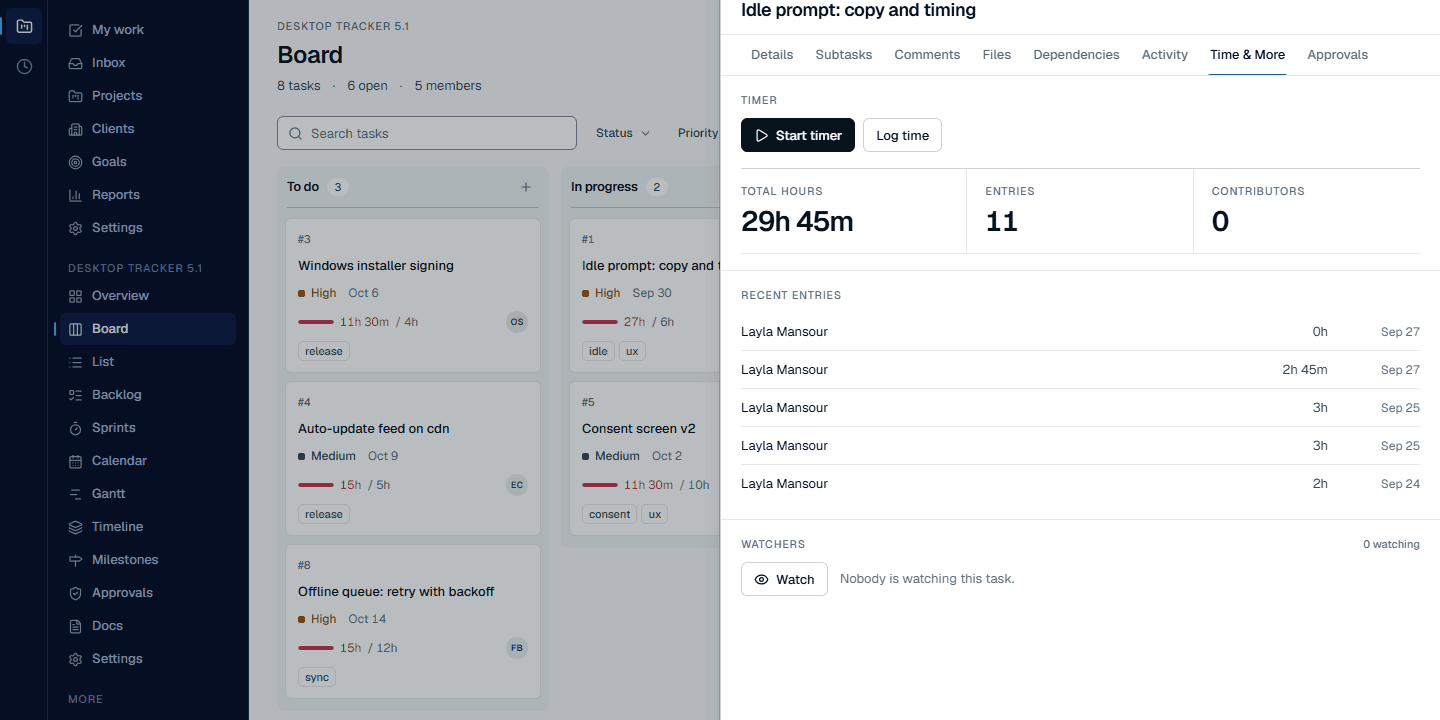
The task carries its own hours.
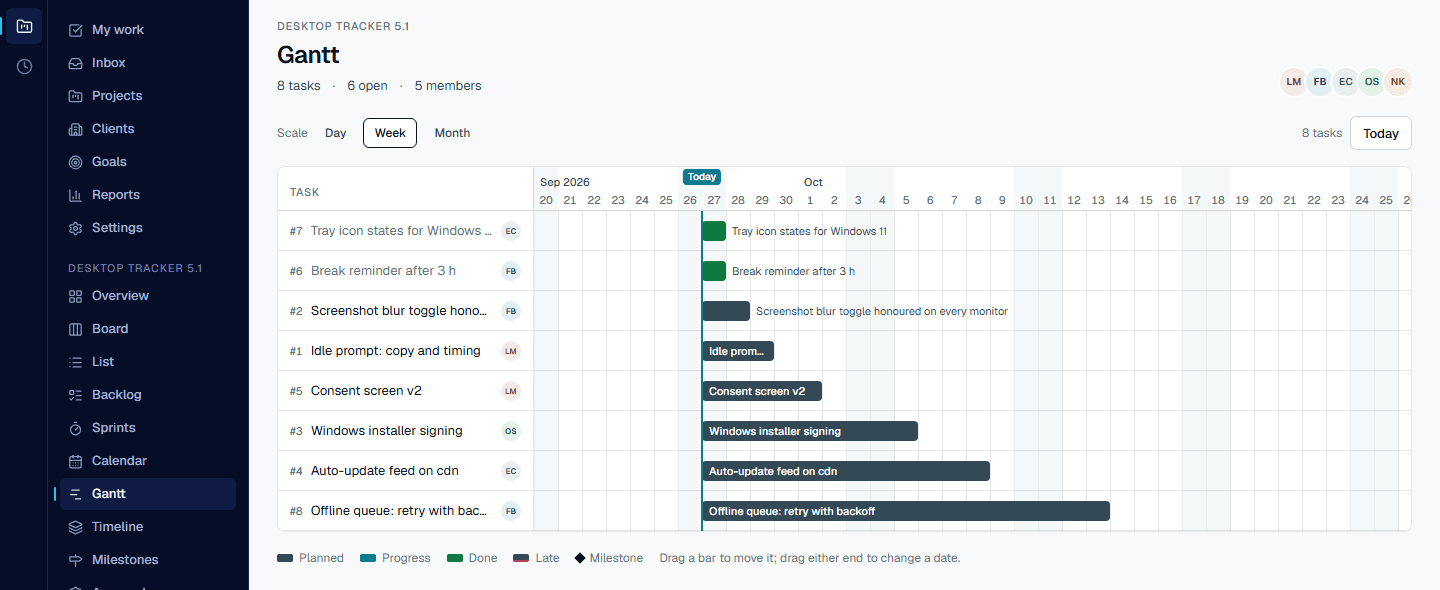
Boards, lists, sprints, a calendar and a Gantt for planning; and on every task, a Time tab where the timer starts and the logged hours accumulate. The plan and the record are the same object.
- Start a timer or log time from the task itself
- Total hours, entries and contributors on each task
- A project's budget rises as approved hours arrive against it
Payroll
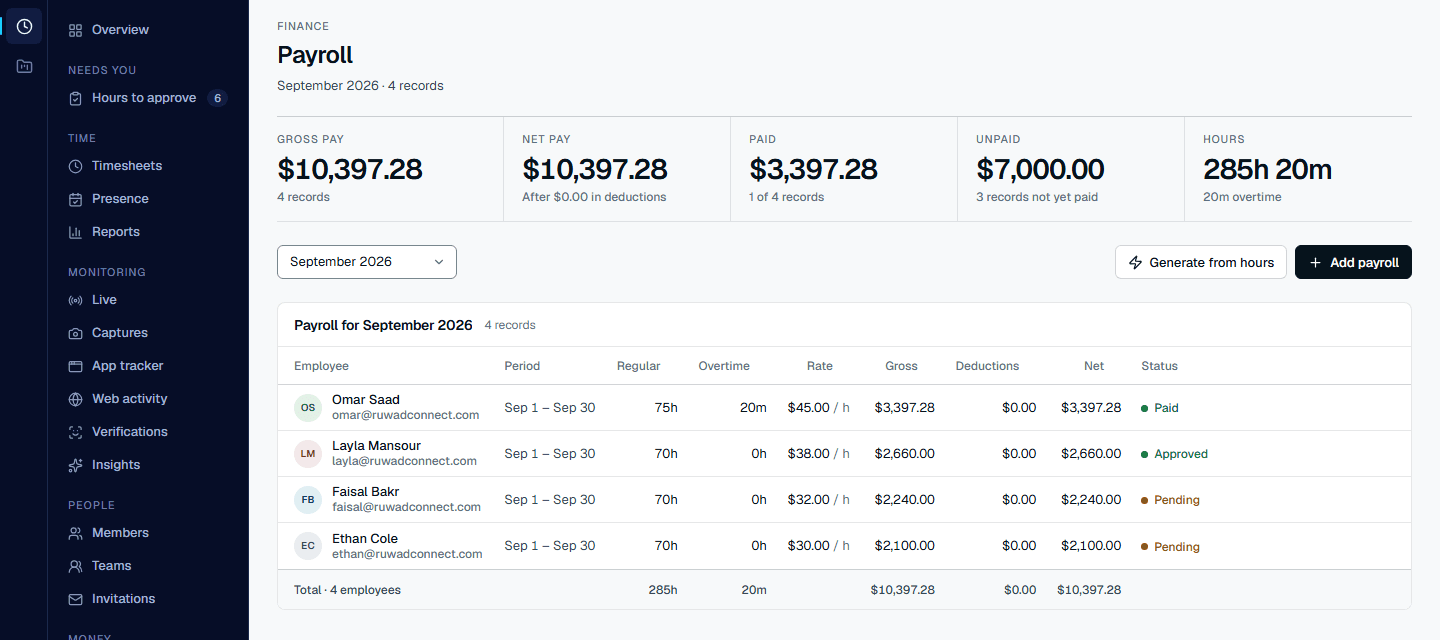
Pay people from the hours you approved.
One button builds the month from approved hours times each member's rate, with overtime. Approve the run, mark it paid, and every person gets a payslip PDF.
- Regular and overtime hours, rate, gross and net for each member
- Manual edits stay possible before a run is approved
- Gross, net, paid and unpaid totals for the period at the top
Invoices
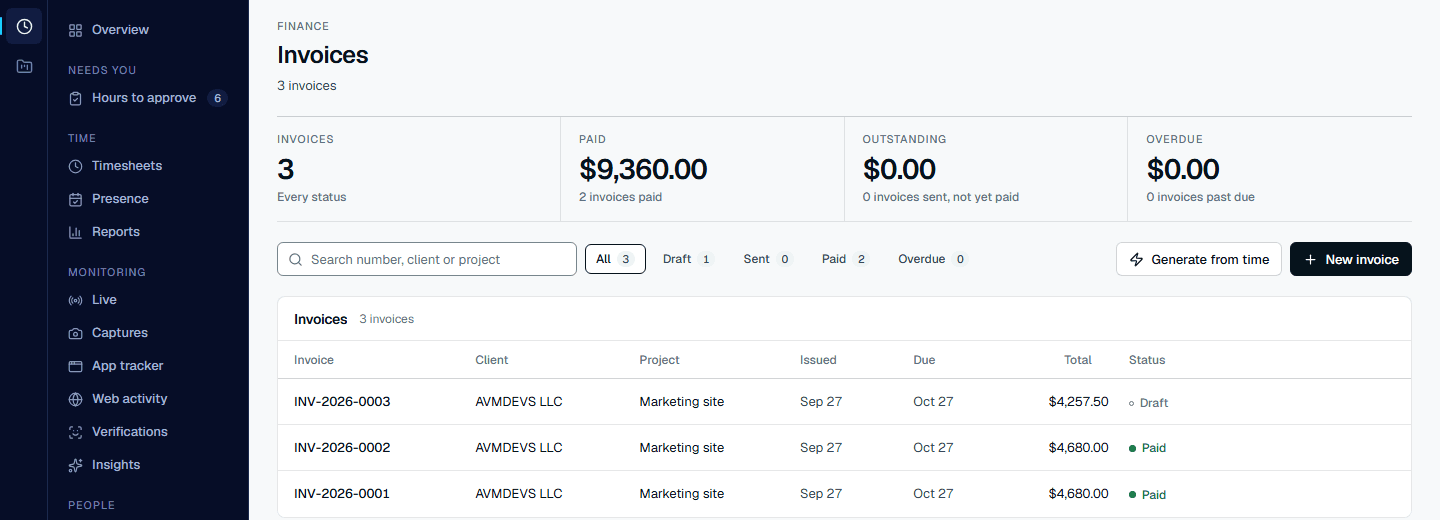
Bill clients from the same record.
Generate an invoice for a client and project from approved billable hours at the project's rate. Download the PDF or email it from the app; marking it paid issues a receipt.
- Paid, outstanding and overdue at a glance
- Receipt PDF when an invoice is marked paid
- Push customers and invoices to QuickBooks Online
After approval
What an approved hour becomes
Payroll, invoices, receipts and exports all read the same approved hours, so the figures agree with each other.
- Payroll
- A run for any period, computed from approved hours times each member's rate, with overtime. Approve it, mark it paid, and download a payslip PDF for each person.
- Invoices
- Generated for a client and project from approved billable hours at the project's billing rate, as a PDF you can email from the app.
- Receipts
- Mark an invoice paid and a receipt PDF is issued for it.
- Exports
- Time by member or by project as CSV, XLSX or JSON, or as CSV files laid out for importing into ClickUp and Zoho Projects.
- QuickBooks Online
- Connect a QuickBooks Online company and push customers and invoices to it.
Start today
Install the tracker on one machine and watch the first hour arrive.
Create a workspace, download the tracker, punch in. The captures, the timesheet and the approval are all there within the hour.
- Free plan
- 10 people · 3 projects
- Windows
- 10 or later, 64-bit
- Installer
- .exe, or .msi for IT rollouts
- Card
- Not needed on Free
How it works
Five steps from an empty workspace to the first payslip and the first invoice.
Create a workspace
Register on the web. The Free plan holds ten people and three projects, and every plan includes the tracker, projects, approvals, payroll and invoicing.
Invite the team, add the clients
Employees get an email, accept, and install the tracker. Clients are the companies you bill: their projects carry the rate, and they receive invoices and receipts by email, never a screenshot.
Track
People punch in on a project and a task. The tracker records time, screenshots, breaks and idle time at the plan's cadence, after each person has given consent.
Approve
A manager reviews the timesheets and approves the entries. Task hours and project budgets update on the spot.
Pay and bill
Generate payroll from approved hours and invoices from approved billable time. Payslips, invoices and receipts are PDFs; exports go wherever the rest of your books live.
How your data is handled
- Screenshots and photos
- Private storageopened only through signed links that expire within 15 minutes
- Workspaces
- Kept apartthe server refuses a request for another workspace's records
- Consent
- Checked by the servertracking does not start until the person has accepted the current version
- Windows installer
- Signedby AVMDEVS LLC, through Microsoft Trusted Signing
Who it is for
Built for teams that pay and bill by the hour
Agencies that bill by the hour
Every invoice line is an approved hour on a named project at that project's rate, with the captures behind it if a client ever asks.

Remote and hybrid teams
See who is punched in and what they are on, review the day's captures, and pay people from hours a manager has already checked.

Companies with several entities
Run more than one workspace from one sign-in, switch between them on the web, and hold a different role in each.
Questions
Before you install it
Does it work without the desktop app?
The web workspace works on its own for projects, approvals, payroll and invoices, and time can be logged on a task by hand. Screenshots, webcam checks and idle detection need the desktop tracker, because they happen on the computer where the work is done.
Can people see what is recorded about them?
Before anything is captured, the first launch shows each person what the workspace records and asks for their consent. The version they agreed to is checked by the server, and nothing is captured until they have given it. A person can open their own Captures page at any time.
Who decides the screenshot cadence?
The plan does. The desktop reads the cadence from the server each time and cannot raise it; an admin can only lower it or turn blur on. Free takes one an hour, Starter twelve, and Professional and Enterprise up to 30, the tracker's densest cadence.
What happens when someone walks away from the keyboard?
The app notices and asks what happened. The idle time is left out of the entry on the server, not just on the screen, and tracking pauses on its own if the app loses contact with the server.
Is there a Mac version?
Not yet. The tracker is a Windows app today (Windows 10 or later, 64-bit). The web workspace works in any modern browser, on a Mac too.
Can we try it before paying?
Yes. The Free plan has no charge and holds ten people and three projects. Paid plans can start with a trial at checkout, and plans are changed from the billing page in the workspace.
Start with a free workspace. Prove the first hour today.
Create the workspace on the web, install the tracker on one machine, punch in. The Free plan holds ten people and three projects and needs no card.